
Modules in Policy Builder
CFEngine Build has ready-made modules for inventory, compliance reports, security hardening, common tasks and new promise types.
Policy Builder can browse them, add them to a project and answer their questions, and installs them with cfbs when you save.
Modules are for policy sets: a project of the module type can’t add them (see Policy Builder projects).
Browsing modules
Click Modules in the activity bar (⇧⌘X) to open the Modules view.
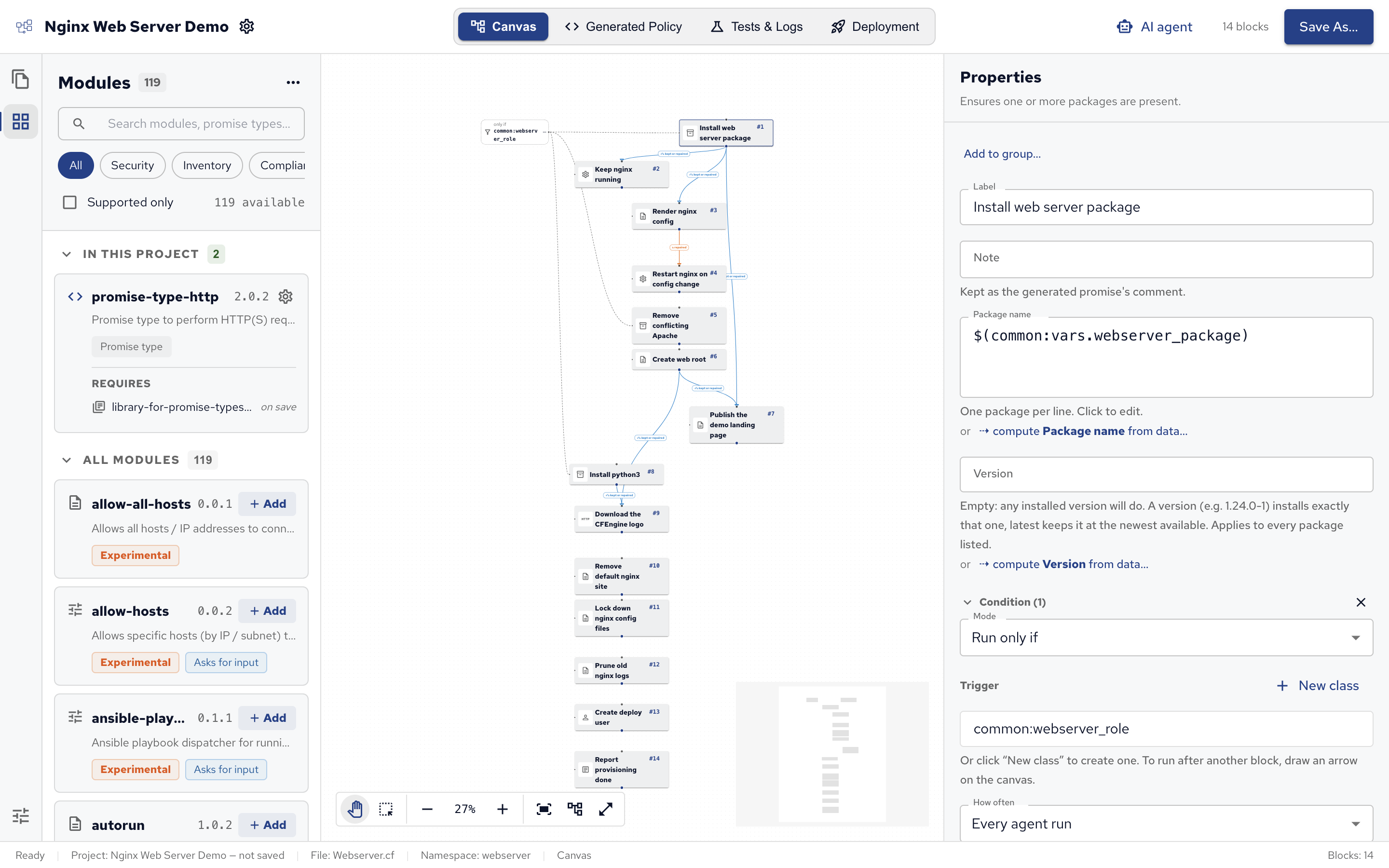
- Search modules, promise types… filters the list by name and description.
- The chips filter by tag: Security, Inventory, Compliance, Management, Promise types, Windows, SSH and Libraries.
- Supported only shows only the modules CFEngine supports.
- In this project lists the project’s modules, in the order they run; All modules lists the rest.
Libraries, modules that other modules need, are hidden unless you pick the Libraries chip, search for one or choose Show libraries in the … menu. The same menu’s Refresh list downloads the list again.
Each module shows its version and badges: Experimental for modules not yet considered stable, Asks for input for modules with questions to answer, and Promise type for modules that add a promise type.
The list comes from build.cfengine.com and is kept on your computer, so the view works offline with the last list downloaded; it says so, with the date.
A search in the Blocks palette that finds no block offers Browse modules…, which searches the modules for the same words.
A module’s page
Click a module to open its page, as on build.cfengine.com:
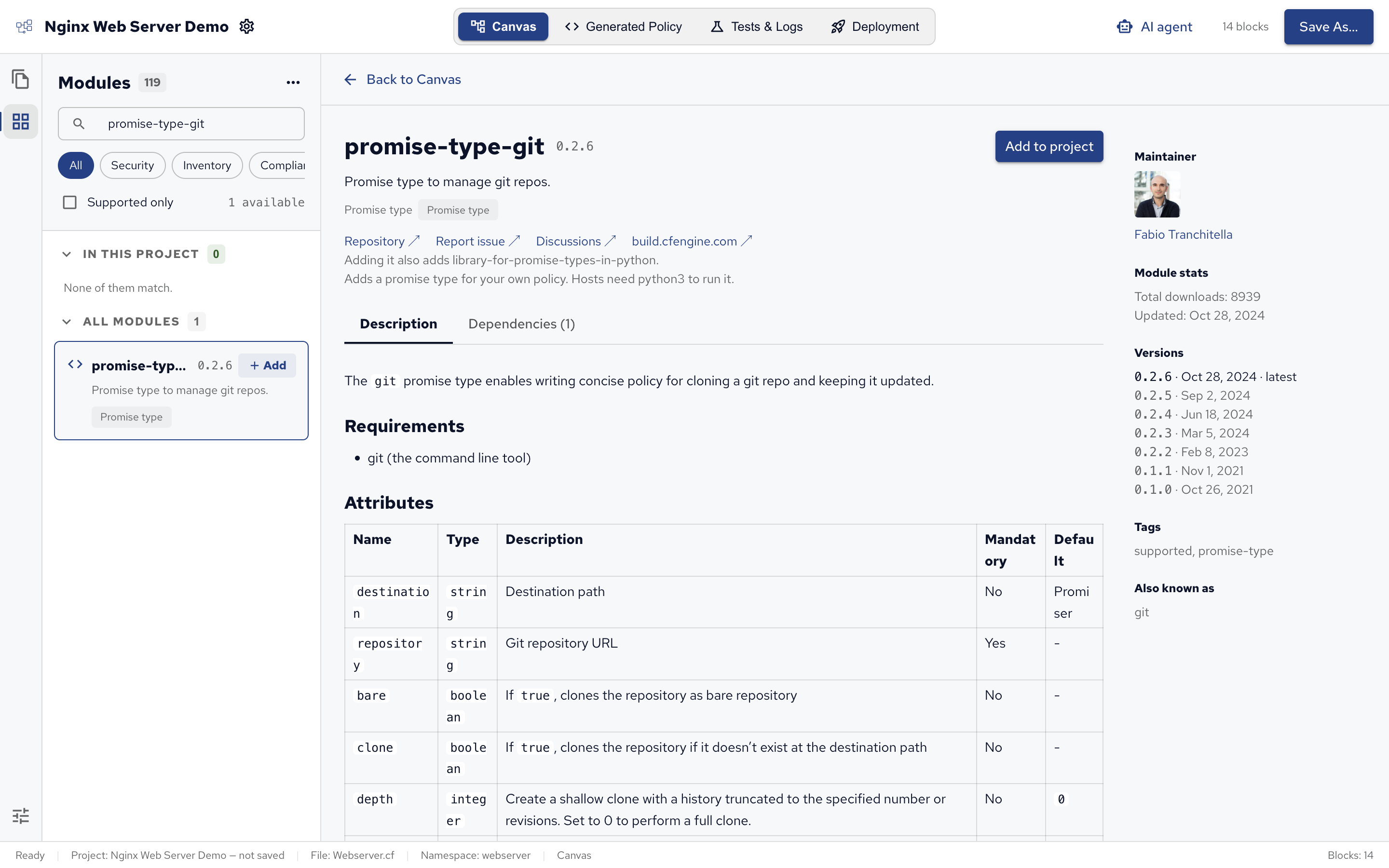
- Description: the module’s README.
- Dependencies: the modules it needs, which are added with it.
- Input: the module’s questions, when it has any.
- On the side: links to its repository and documentation, its maintainer, versions and download statistics.
Add to project adds it, and Remove takes it out again. Back to Canvas, or the Blocks and files icon, returns to the canvas.
Adding a module
Click Add on a module in the list, or Add to project on its page. Its dependencies are added with it, shown under Requires in its card. A dependency that saving will add shows on save.
Nothing is installed until you save: saving runs cfbs add for new modules and cfbs remove for removed ones, so it needs internet access and can take a while.
Modules run before the project’s own policy, in the order listed under In this project.
They aren’t blocks and have no arrows.
Answering a module’s input
Some modules ask questions before they can work, such as delete-files, which asks which files to delete. Until every question is answered:
- the Modules icon in the activity bar shows how many modules need input;
- the module’s card has an orange border and an Answer its input button, and a line above the list names it;
- the Modules row under Configurations says how many need input.
Answer on the module page’s Input tab: a question takes text, a list of texts, or a list of rows with several fields each.
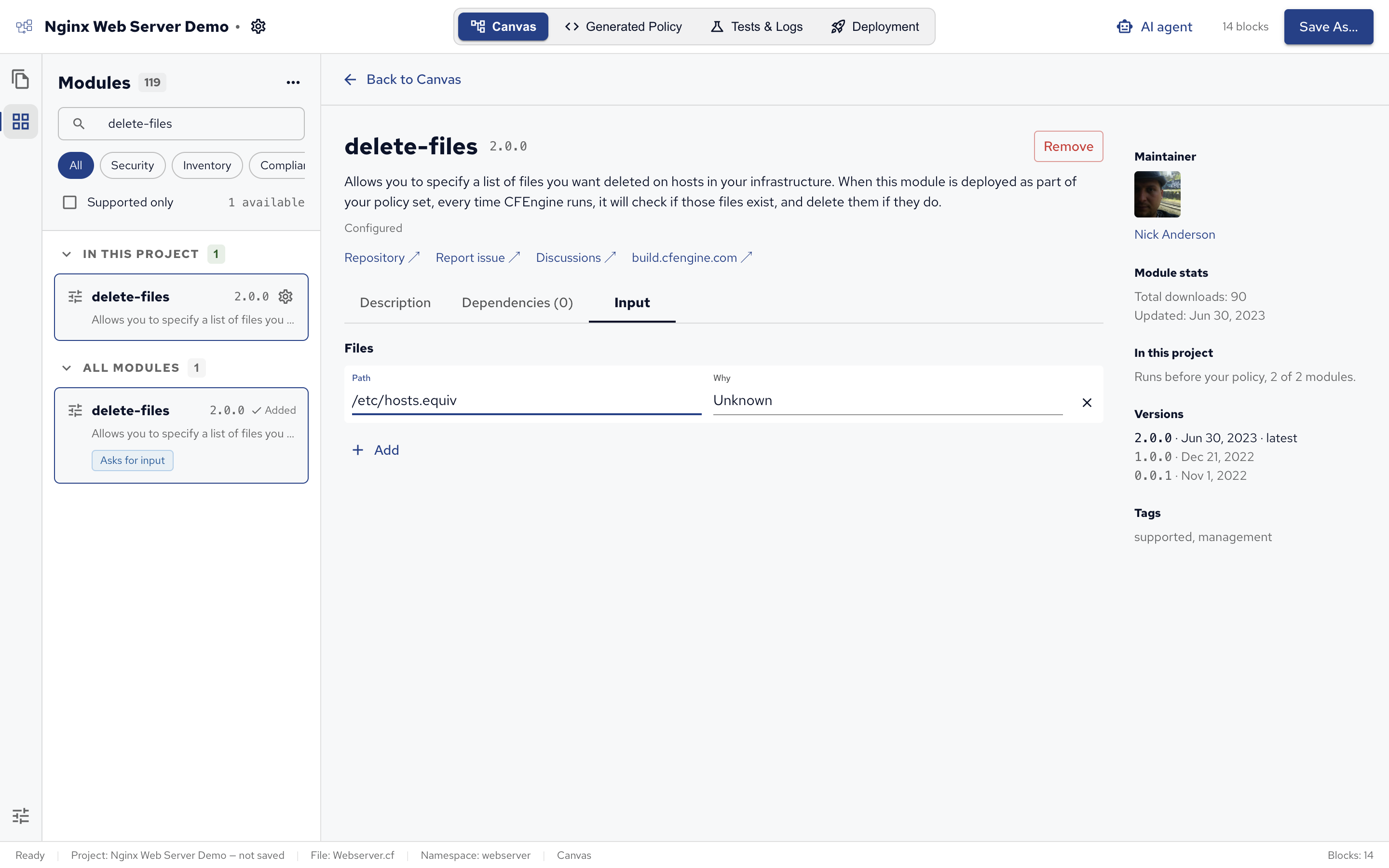
The answers are saved in the project, in the module’s input.json, and undo takes an answer back like any other change.
Blocks from modules
Four blocks use promise types that come from CFEngine Build modules: Git Checkout, HTTP Request, Systemd Unit and Run Ansible Playbook. Blocks from modules lists their settings, and which module each needs.
Adding one of these blocks adds its module to the project, and the module stays while a block uses it. Prefer them to running commands: they report kept and repaired properly, so arrows and How often work.
These modules run with Python, so hosts need python3 (test hosts have it).
Properties advises adding an Install Package block for python3 before such a block: Add Install python3 before it adds one, connected with an arrow, and Ignore in this project stops the advice if your hosts already have Python.
Removing a module
Choose Remove… in a module’s gear menu, or Remove on its page. Its dependencies go with it, unless another module still needs them.
A module can’t be removed while it’s needed: a module a block uses shows Used by and the block’s label, and a dependency shows Added for the module that needs it.
 Chat
Chat Ask a question on Github
 Mailing list